


01What it is
The mobile version has two tabs. Overview is the Workshop at a glance screen, view only. My tasks lists the tasks the workshop manager assigned to this person in jobs in progress. The mobile version is available to people with the Mobile access permission, which by default the Owner and Mechanic role templates have.
The My tasks tab is for an account linked to an employee with permission to edit the Workshop module. People who do not run the dashboard, such as mechanics, start on the phone with their own tasks.
A phone with mobile access is moved to the mobile screen by itself. The choice is saved on your account, and you return with Show the full application in the footer.
A phone without the permission is asked to open the app on a larger screen.
- PULSE
- What has changed since your last visit, up to 14 days back.
- SIGNALS
- Jobs, stock, money and customers.
- MY TASKS
- Today's and overdue tasks, Done and a photo for the job.
02What it is for
The workshop in your pocket
You check how things stand from your phone, away from the workshop.
Know where to act
Signals show the matters that are waiting.
All quiet
When nothing needs attention, the screen says so plainly.
The mechanic knows what is next
Today's tasks are on the phone, without searching through jobs.
03Main options
The mobile screen has two tabs: Overview with the pulse and signals, and My tasks.
Since your last visit
Numbers since your previous visit, at most 14 days back.
- Cars checked in and handed over
- Money received (with access to finance)
- New comebacks
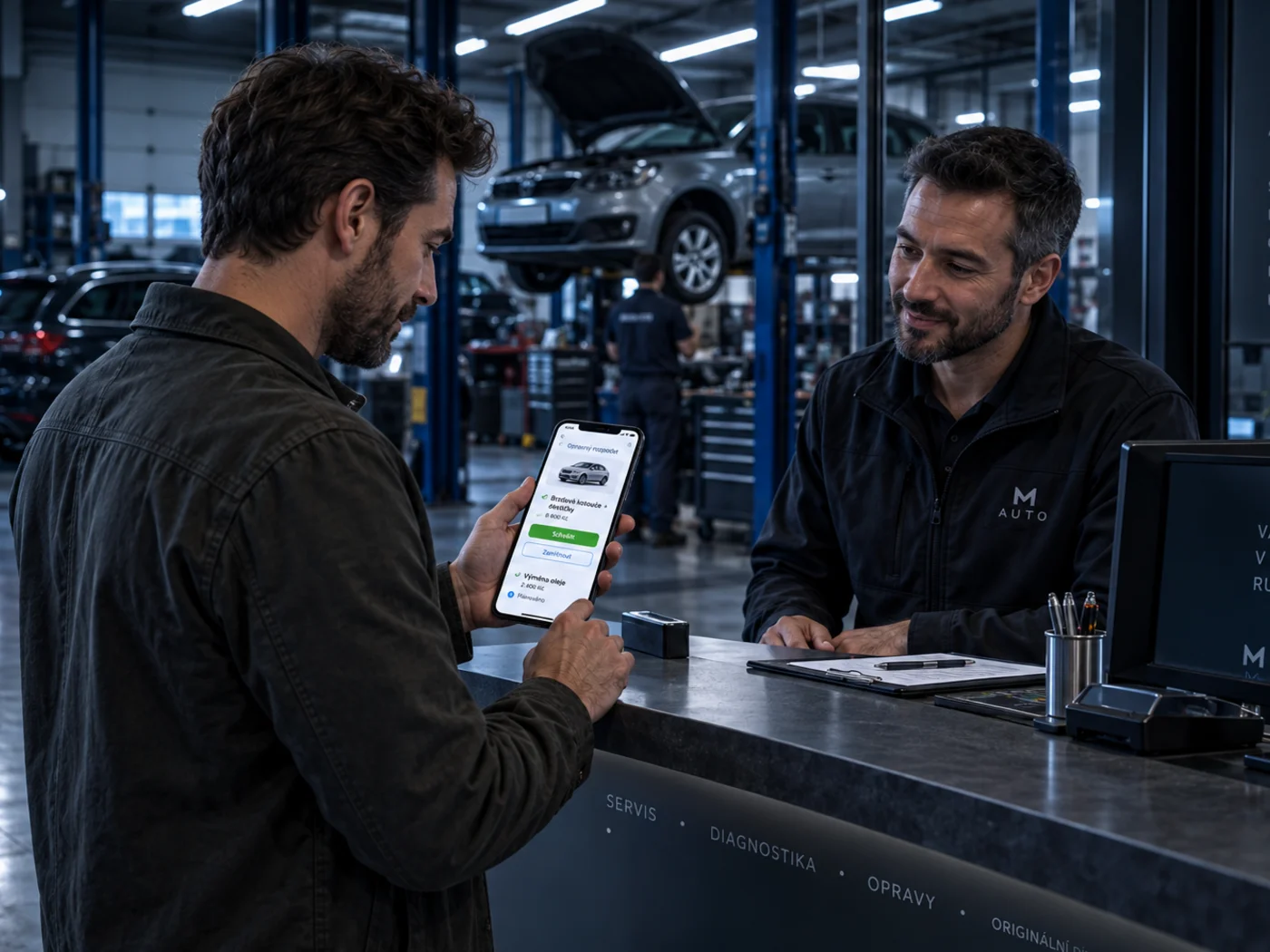
Four areas of attention
Each area shows with its permission.
- Jobs: overdue, due today, missing parts, time over plan, no hours, cars to hand over
- Stock and parts: not covered, below minimum, parts past their delivery date
- Money: overdue receivables, comebacks charged to the workshop
- Customers: unanswered enquiries, expiring quotes, customers to contact
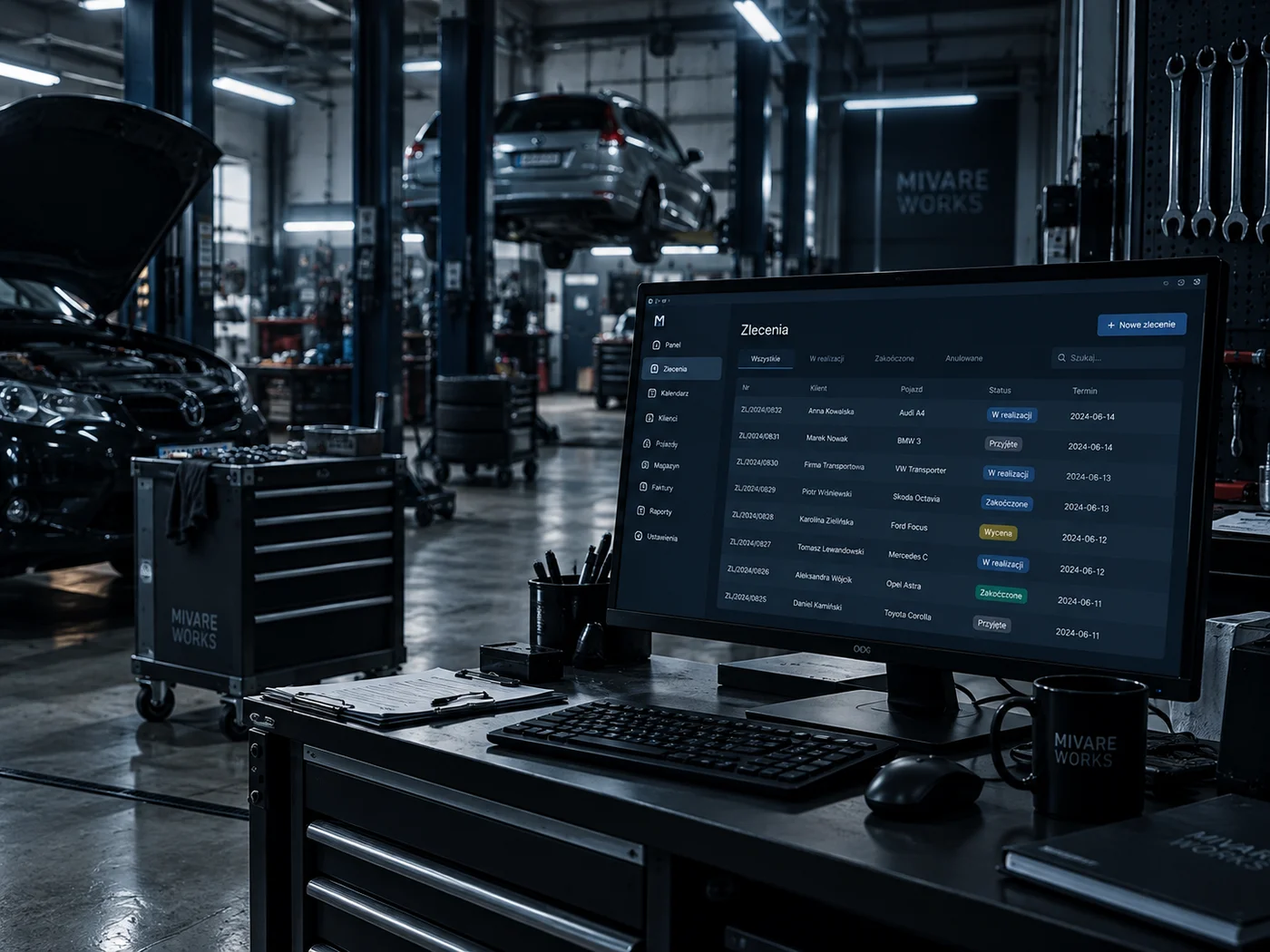
A mechanic's tasks for today
Only tasks assigned to this person in jobs in progress.
- Overdue and Today, with the job number and car
- Done and Reopen
- Add a photo to the job
- Working hours are entered by the workshop manager on the work card
04Tasks step by step
- STEP 1Open Settings › Users and that person's account.
- STEP 2Grant the Mobile access permission and save.
- STEP 1On the phone, open the My tasks tab.
- STEP 2Next to the task choose Done. If it was a mistake, use Reopen.
- STEP 3To document the work, choose Add a photo to the job and Send photo.
- STEP 1In the account menu choose Mobile version.
- STEP 2To return, use Show the full application in the footer of the mobile screen.
05Actions
The most common tasks in the mobile version.
Mobile version
The workshop at a glance on a phone.
Done
A task from My tasks is finished.
Show the full application
Back to the full version.
06What it connects to
Choose a module to see where the signals come from.
Daily dashboard
The full picture of the day is on the daily dashboard.
Go to the topicDaily dashboardOwner centre
Details of matters to decide are in the Owner centre.
Go to the topicOwner centreJobs
Tasks and the employees assigned to them are set by the workshop manager in the job.
Go to the topicJobs